
How to save logs in TruckTool
If you have trouble when using TruckTool, logs are vital in solving the issue when you contact TruckTool support.
Save a log file in TruckTool
-
Run the operation in TruckTool you want to log.
-
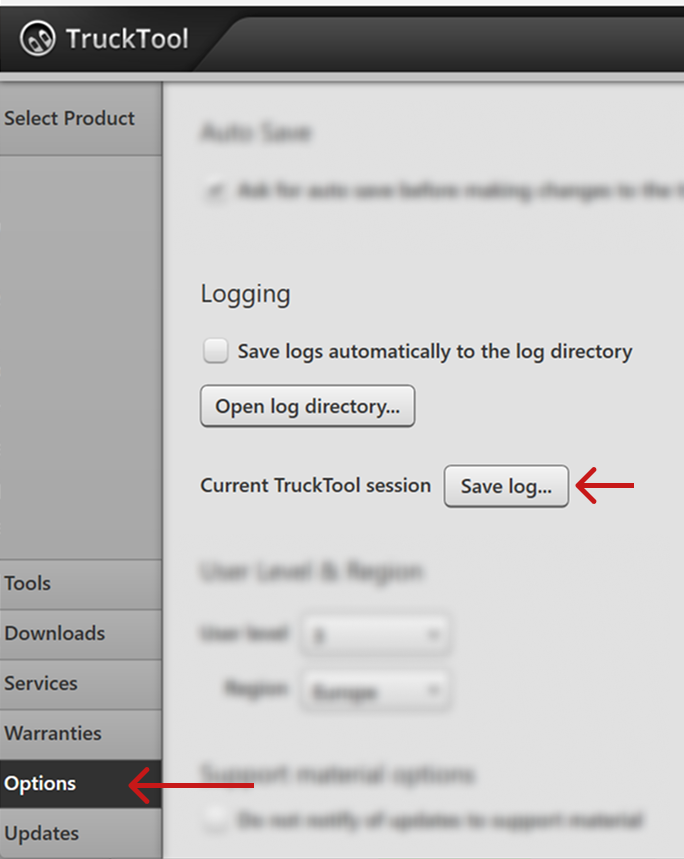
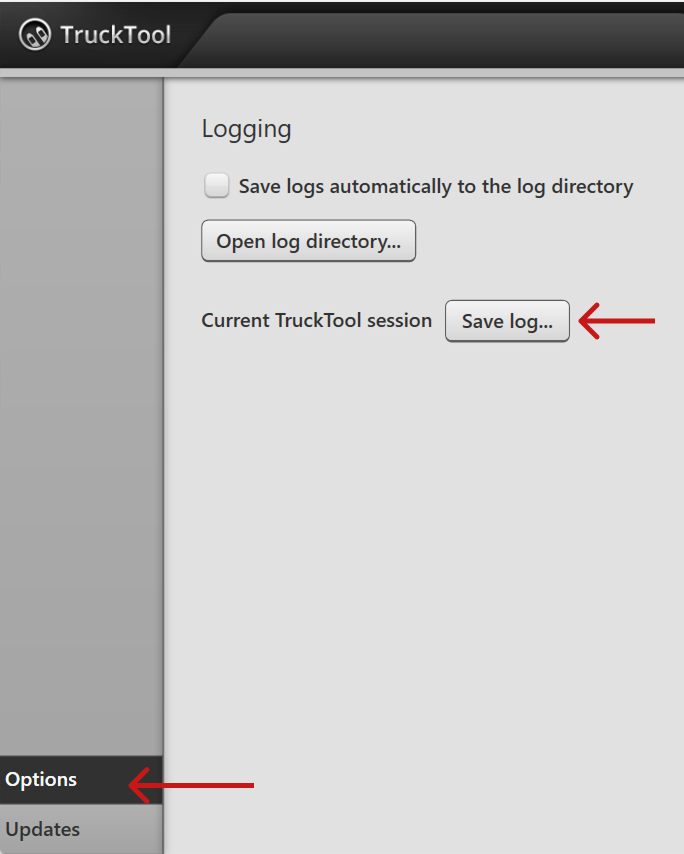
Go to “Options” view from the navigation bar on the left. Save the log by clicking “Save log...”.
-
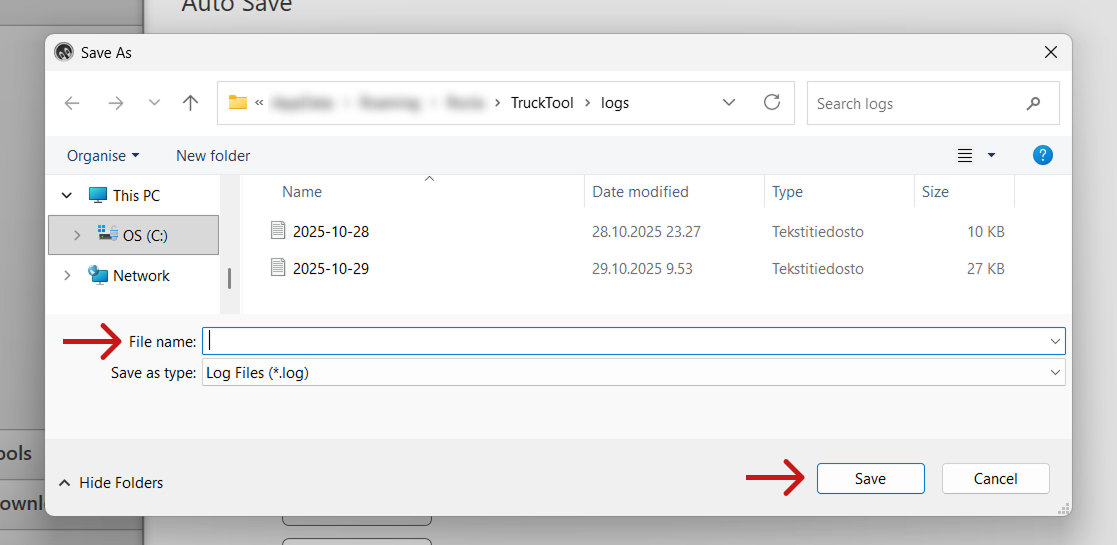
Type a file name you will recognize later and click "Save". Usually naming the file with current date and time is recommended.
-
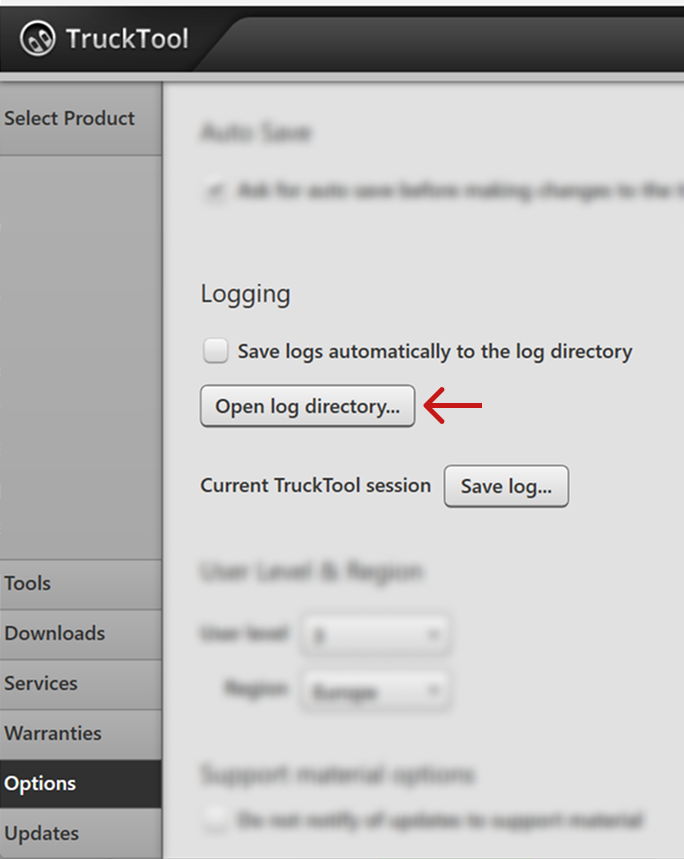
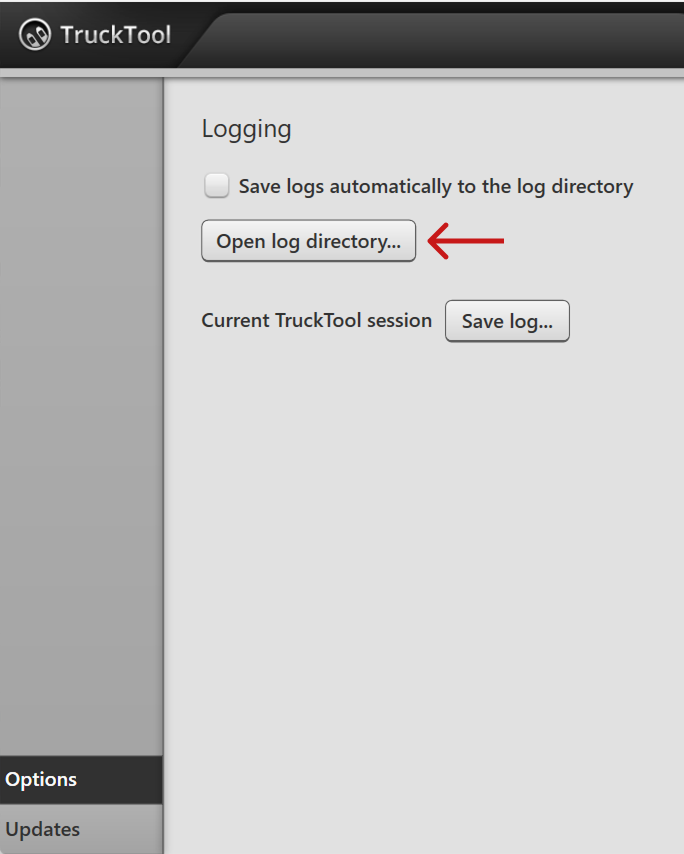
You can view your saved log files by clicking “Open log directory...” in the "Options" view.
-
When you have saved the log send it to TruckTool support.
Save a log file associated with authentication
-
Ensure that you are not logged in to TruckTool by clicking the user icon in the upper right corner. If you are logged in, log out before continuing to the next step.

-
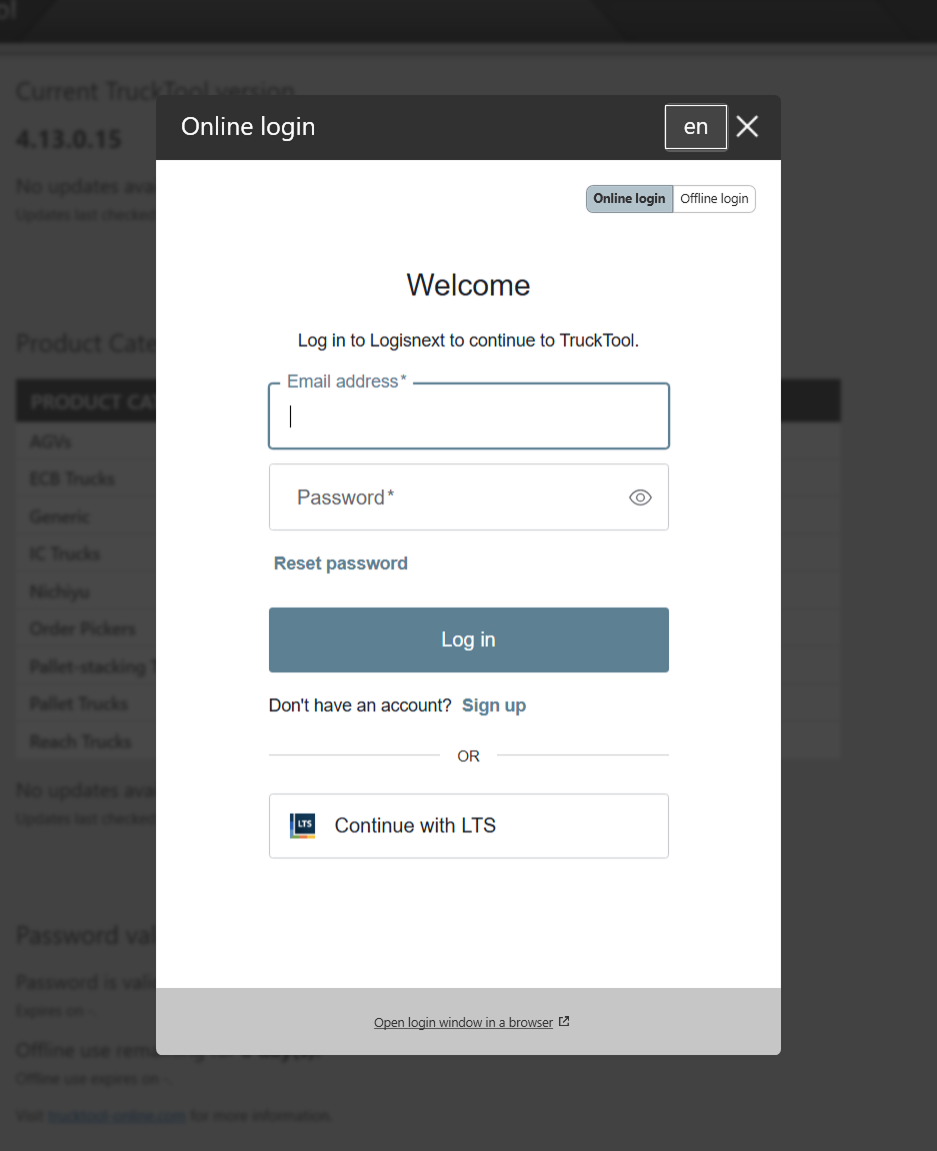
Open the login dialog by clicking the user icon and selecting "Log in".

Enter your credentials to the login view and click “Log in”.
-
Regardless if the login was successful or not, go to “Options” view from the navigation bar on the left. If the login was unsuccessful, you need to close the error message and the login window before you can navigate to "Options".
Save the log by clicking “Save log...”.
-
Type a file name you will recognize later and click "Save".
-
You can view your saved log files by clicking “Open log directory...” in the "Options" view.
-
Send the log file you saved to TruckTool support.